You cleared your desk, set up that gorgeous 34-inch (or maybe even 49-inch) ultrawide monitor, plugged in your Mac, and here the question how to organize a 34-inch ultrawide monitor?
But then reality hits quickly. You open a browser, and it stretches across the entire 34 inches, making you physically turn your neck just to read a single paragraph. Trying to snap a window to the side turns into a frustrating game of drag-and-drop Tetris.
While macOS is a beautiful operating system, its native window management was designed for laptop screens, not massive ultrawide canvases. Here is your 2026 guide to truly taming your ultrawide monitor without losing your mind (or your mouse cursor).
The Problem: Dragging is Dead Time
When you have a massive screen, the distance your mouse has to travel is equally massive. Dragging a window from the far left to the top right corner breaks your focus and leads to wrist fatigue. You need to stop dragging.
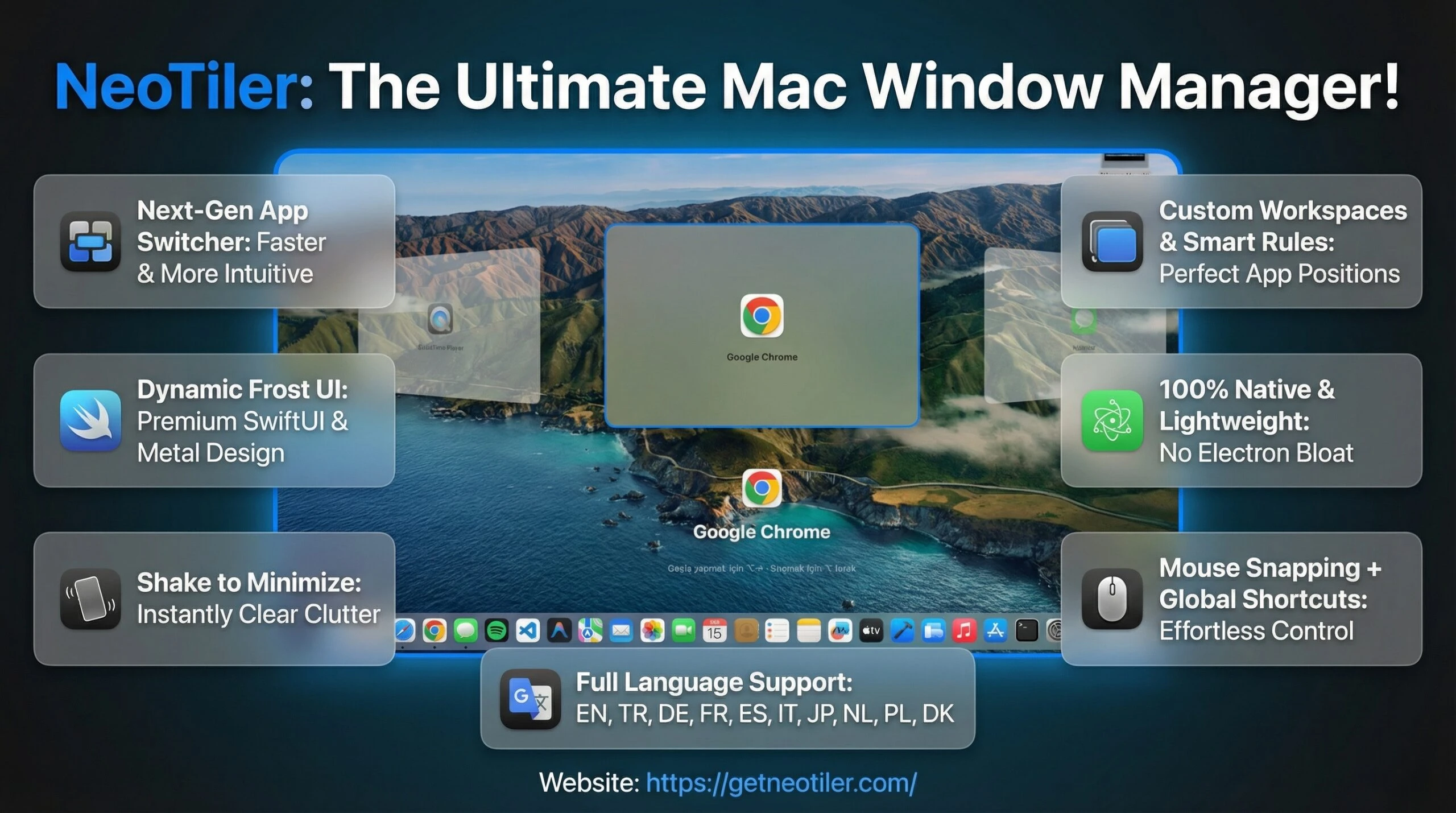
I was so frustrated by the bloated, resource-heavy (Electron-based) window managers on the market that I built my own 100% native and lightweight tool using Swift: NeoTiler. Instead of forcing hidden, unchangeable background settings, I built a system that believes in total user freedom. Here is the exact workflow I use to conquer the ultrawide screen.
Step 1: Restore Your Entire Layout with One Click (Custom Workspaces)
The biggest pain of an ultrawide monitor is setting it up every single morning. Manually resizing and placing your code editor, browser, terminal, and messaging app one by one is a modern torture.
Instead, use Custom Workspaces. You just set your app positions once and save them. Now, with a single click every morning, you can restore your entire screen layout perfectly in milliseconds. It saves an incredible amount of time right at the start of your day.
Step 2: Automate the Chaos with Smart Rules
Instead of manually aligning apps every time you open them, let your Mac do the work. With Smart Rules, you can define exactly where each app should open automatically.
But what about a small calculator or a floating video window that you don’t want to snap? Just add them to the Exceptions (Ignored List). They will bypass your rules and stay exactly where you want them, floating freely.
Step 3: Fix the Lost Cursor and High-Precision Corners
One of the most annoying things about large screens is throwing a window to the far left using a keyboard shortcut or the Menu Bar Icon, only to realize your mouse cursor is still stuck on the far right. You then have to aggressively swipe your mouse to get it back.
Thanks to Intelligent Mouse Centering in NeoTiler, the moment you snap a window, your cursor instantly teleports to the dead center of it. Additionally, with Corner Snap Boxes, dragging windows to the corners of your screen gives you pinpoint accuracy and a flawless layout every time.
Step 4: Forget the Native Switcher (Next-Gen App Switcher)
On a massive screen, you don’t just have 3 apps open; you have 15. Navigating a linear list with Mac’s native app switcher makes your eyes tired as you search the giant screen for the right icon.
I designed a Next-Gen App Switcher specifically for power users handling dozens of windows. It allows you to jump to the exact window you need much faster and more intuitively, without breaking your visual focus.
Step 5: Master Mouse Gestures
Ultrawide setups often rely on a desktop mouse rather than a trackpad. With NeoTiler, you can use Middle Click Support to trigger custom Mouse Gestures using your scroll wheel. Better yet, you can use the slider to adjust the Gesture Recognition Accuracy anywhere between 50% and 95%, keeping that perfect balance between flexibility and precision entirely in your hands.
Bonus Tip: Just “Shake” to Focus (Shake to Minimize)
Even with the best layout, your screen can get cluttered with piled-up windows. When there is too much chaos, just grab the top of the window you actually care about and shake it (Shake to Minimize). Every other window on the screen instantly minimizes, giving you immediate focus.
Final Thoughts
An ultrawide monitor is a revolution for your workflow, but only if you have the right software to manage it. Stop fighting Mac’s clunky native structure. Leave the job to a 100% native tool that feels like a natural part of macOS, features a premium “Dynamic Frost UI“, and works globally with full support for 10 languages (including English, Turkish, Japanese, German, and more).
Ready to restore your entire layout with a single click and take full control of your ultrawide screen?

 Veysel Okatan